Introduction
A Linux application can suddenly fail to open a file, accept a new connection, or create a pipe even when the filesystem has plenty of free space. One possible error is:
Too many open files
This message usually indicates that an application has reached a file-descriptor limit or that the system is under pressure from its available file handles. The exact cause depends on which resource is exhausted and how the process was started.
File descriptors are used for much more than ordinary files. Network sockets, pipes, terminals, and other resources can also be represented by descriptors. A server that handles many simultaneous connections can consume a large number even if it rarely opens files directly.
The right response is not to increase every limit immediately. First identify which process is affected, determine whether the limit is per-process or system-wide, and find out why descriptors are accumulating.
This article presents a practical investigation using standard Linux tools. The commands begin with read-only checks and move toward application-level diagnosis and carefully considered configuration changes.
1. Understand What a File Descriptor Is
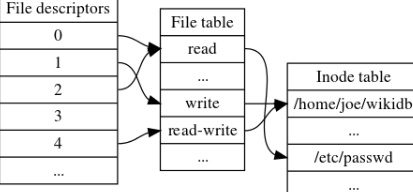
A file descriptor is a small integer used by a process to refer to an open resource. When a process opens a file, accepts a socket, or creates a pipe, the kernel provides a descriptor that the process can use for later operations.
Common descriptor-related operations include opening a file, creating a socket, accepting a network connection, duplicating a descriptor, and closing a resource when it is no longer needed.
A process may hold descriptors for:
- Regular files and directories.
- Listening and connected network sockets.
- Pipes between processes.
- Standard input, standard output, and standard error.
- Temporary files and other kernel-managed resources.
Every process has a limit on the number of file descriptors it can open. Linux also maintains system-wide file-handle resources. An error can therefore occur because a single process has reached its configured limit, because the overall system is running short of file handles, or because another related resource is exhausted.
Start with the exact application error and its timestamp. Determine whether the problem affects a single service, all services of the same type, or the entire host. A process-specific failure is different from a system-wide resource shortage.
2. Check the Current Shell's Limits
For a quick look at the limits of your current shell, run:
ulimit -Sn
ulimit -Hn
The first command reports the soft limit for open file descriptors. The second reports the hard limit. The soft limit is the effective threshold ordinarily enforced for the process; the hard limit constrains how high an unprivileged process can raise its soft limit.
This check is useful, but it does not necessarily show the limits of an already-running server. A service launched by systemd, a container runtime, a supervisor, or another process can inherit different settings from the shell you are using now.
Do not conclude that an application's limit is correct simply because your interactive terminal reports a large number. Inspect the affected process directly in the next step.
3. Inspect the Limits of the Affected Process
First identify the process ID:
pgrep -a example
Replace example with a distinctive application name. If multiple instances appear, identify the correct process before continuing.
Then inspect its limits:
cat /proc/1234/limits
Replace 1234 with the actual process ID. Look for the entry named Max open files.
The file shows the soft and hard limits for that process. It is more relevant than the shell's ulimit output because it reports the limit associated with the target process.
Also check the process's current descriptor count:
find /proc/1234/fd -maxdepth 1 -type l | wc -l
This counts descriptor entries visible under that process's /proc directory. Permissions, process lifetime, and timing can affect the result. If the process exits while the command runs, the output may be incomplete or the path may disappear.
If the count is close to the process's soft limit, that is strong evidence for a per-process descriptor exhaustion problem. If the count is much lower, investigate whether the failure was intermittent, whether another process is responsible, or whether the application is hitting a different resource limit.
4. Examine Which Resources the Process Holds
A count tells you how many descriptors exist, but not why they are open. To inspect the descriptors, use:
ls -l /proc/1234/fd
The output may contain paths to regular files, pipes, sockets, and other resources. Socket entries may appear as identifiers rather than friendly connection names.
On systems where lsof is installed and permissions allow it, you can use:
sudo lsof -p 1234
This can provide a more readable view of open files and sockets associated with the selected process. It can also generate a large amount of output for a busy server, so target the affected process rather than running broad scans unnecessarily.
Look for patterns rather than blaming one entry. Hundreds of descriptors associated with expected client connections may be normal during peak traffic. Thousands of repeated references to a particular file, an unusually large number of pipes, or sockets that accumulate over time may indicate a defect or an unexpected workload.
Some descriptors are intentionally long-lived. Database connections, listening sockets, log files, and application caches can remain open for a process's lifetime. The goal is not to force every descriptor closed; it is to determine whether the number and lifetime of descriptors match the application's design.
When reviewing output, protect sensitive details. File paths can disclose usernames, deployment layouts, or internal application structure. Socket information may expose private network addresses. Remove unnecessary information before sharing diagnostic output.
5. Check for a System-Wide File-Handle Limit
A system-wide resource shortage can affect multiple processes. Inspect the kernel's file-handle statistics with:
cat /proc/sys/fs/file-nr
On common Linux configurations, this file exposes counters representing allocated file handles, unused allocated handles, and the configured maximum. The precise interpretation can vary by kernel version; consult the documentation for the system if you need to interpret the counters rigorously.
You can also inspect the configured maximum with:
cat /proc/sys/fs/file-max
This setting is not the same as an individual process's RLIMIT_NOFILE limit. Raising a process limit does not necessarily fix a system-wide shortage, and increasing the system maximum does not correct an application that continually leaks descriptors.
If many unrelated services fail at approximately the same time, inspect these system-level counters alongside the individual processes. If only one process is affected and its descriptor count is close to its limit, focus first on that process.
Avoid changing system-wide limits because one application has reached its own threshold. A broad adjustment can conceal a leak or permit more resource consumption than the host can safely handle.
6. Check Whether a Service Has a Different Limit Than Your Shell
Services started by systemd may use limits configured through the unit or inherited from manager-level defaults. They are not necessarily launched with the same settings as an interactive terminal.
For a service named example.service, inspect the relevant properties with:
systemctl show example.service -p LimitNOFILE
This reports the service's configured open-file limit where the property is supported. It should be compared with the target process's /proc/<PID>/limits output.
For a service-specific configuration, review the unit file and any drop-in overrides:
systemctl cat example.service
Be cautious when inspecting production service configuration. The goal is to understand how the process obtained its limit, not to modify its startup behavior during the initial investigation.
A setting changed in a user's shell profile may not affect a service launched at boot. Similarly, PAM-based limits may apply to login sessions but not necessarily to system services started by systemd.
If the service has an unexpectedly low limit, identify the source of the setting and make the correction in the appropriate configuration layer. Document why the new value is needed and ensure it fits the application's expected concurrency and resource usage.
7. Look for a Descriptor Leak
A descriptor leak occurs when an application opens resources but does not close them when they are no longer needed. The descriptor count can gradually grow until the process reaches its limit.
Possible causes include:
- Files that are opened repeatedly without being closed.
- Network connections that are not released after errors.
- Pipes that remain open after a subprocess finishes.
- Code paths that return early without cleanup.
- Failed requests that skip resource cleanup.
- Retry logic that creates new connections without releasing old ones.
A useful first step is to take several measurements at known intervals. Record the process ID, descriptor count, approximate request volume, and the time of each observation.
For example, run this manually at intervals:
find /proc/1234/fd -maxdepth 1 -type l | wc -l
If the count rises during a workload and returns to a stable baseline afterward, the application may be behaving normally. If it rises continuously even when traffic returns to normal, investigate resource cleanup.
A leak should be confirmed rather than inferred from one high number. A connection pool may intentionally retain a group of reusable connections, while a long-running file-processing job may open many descriptors for a limited period.
Compare behavior under similar workloads. If the count increases much more rapidly after a particular release, examine changes involving file handling, networking, subprocesses, and retry behavior.
8. Separate File Descriptors From Network Connection Problems
A network-heavy service can consume many descriptors because each socket uses one. However, network connection state and descriptor leaks are different things.
Start by examining socket information for the affected host:
ss -s
This provides a summary of socket usage and states. For more detail, use:
ss -tan
The second command displays TCP sockets. It does not prove that a file-descriptor limit has been reached, but it can help determine whether a very large number of connections is part of the workload.
For a listening server, check whether connection volume has changed unexpectedly. A sudden increase in concurrent clients, a retry storm, or a downstream service that responds slowly can cause connection counts to grow.
Do not assume every connection in CLOSE_WAIT or another TCP state has the same root cause. Application behavior, peer behavior, and network timing all matter. Interpret socket states alongside descriptor counts and application logs.
If the problem follows a traffic spike, compare expected concurrency with the service's connection-pool settings and worker count. A temporary increase in demand might require capacity planning; a continuously growing descriptor count may require a code fix.
9. Understand the Difference Between Raising a Limit and Fixing a Leak
Increasing an open-file limit can be appropriate for a service designed to handle many concurrent connections or open resources. It is not automatically the correct response to every Too many open files error.
Consider a service that normally holds 2,000 descriptors but occasionally needs 3,500 during a legitimate peak. A lower configured limit may be inappropriate for the expected workload. Increasing it after measurement and load testing could be reasonable.
Now consider a process whose descriptor count grows by 1,000 every few minutes because it fails to close connections. Raising the limit merely delays the next failure and increases the maximum resource use the process can reach.
Before changing a limit, establish:
- The actual limit applied to the affected process.
- The current descriptor count and its trend.
- Whether the descriptors correspond to expected workload.
- Whether the host has sufficient resources for the intended concurrency.
- Whether application logs show failed cleanup or connection retries.
- How the change can be tested and reversed.
If the root cause is a leak, prioritize application correction. If the configured limit does not match a validated workload requirement, adjust it through the proper service configuration and verify the result.
10. Use Tracing Carefully When the Cause Is Unclear
When simple inspection does not reveal why descriptors accumulate, additional tracing may help. Tools such as strace can show file-related system calls, including opens, closes, socket creation, and connection activity.
For example, a controlled diagnostic session might focus on selected system calls for a process:
sudo strace -f -p 1234 -e trace=openat,close,socket,accept,accept4
Replace the PID with the correct process ID. Availability of the exact syscall names and behavior can vary. Attaching a tracer can add overhead and may expose paths or other operational details, so do not attach it to a busy production process without an appropriate approval and impact assessment.
A short trace may reveal that an application repeatedly opens a file or creates sockets without the expected cleanup. It can also show that the application is failing at a different point than expected.
Prefer reproducing the problem in a test environment when practical. Use production tracing only when justified, keep the observation window controlled, and avoid collecting more data than needed.
For continued Linux study, learn how the process's visible descriptor count relates to the system calls that create and release those descriptors. Connecting the symptom to application behavior makes the fix much more reliable.
11. Verify the Fix Under the Same Conditions
Once the cause is understood and a correction is made, repeat the original checks. Compare the process's descriptor count, actual limits, relevant logs, and socket summary with the measurements taken before the change.
A successful verification should demonstrate that the service can handle the expected workload without continuously accumulating descriptors or repeating the original error.
If you increased a limit, test whether the application remains stable and whether system-wide resource use stays reasonable. If you fixed a leak, observe the descriptor count over enough time to see whether it stabilizes rather than simply dropping immediately after a restart.
Keep a short record of the original failure, how it was diagnosed, what changed, and how recovery was confirmed. This turns an isolated incident into a useful operational reference for the next engineer.
Conclusion
The Linux Too many open files error is a resource-limit signal, not a complete diagnosis. Determine whether the failure belongs to a single process or the whole host, inspect the actual process limit, count its descriptors, and examine what those descriptors represent.
Use /proc/<PID>/limits and /proc/<PID>/fd for process-level evidence, then check system-wide file-handle statistics and service configuration as needed. If descriptors grow over time, investigate the code paths responsible for opening and closing files, sockets, and pipes.
Do not raise limits blindly or restart services before collecting evidence. The right fix might be a corrected service limit, reduced unintended concurrency, better connection management, or a resource-cleanup fix in the application.
A careful process helps distinguish a legitimate capacity requirement from a descriptor leak and prevents a temporary workaround from becoming a recurring outage. For more Linux resources, keep practical notes that explain both the commands and the decisions made from their output.
Comments
Join the discussionNo comments yet. Be the first to comment.